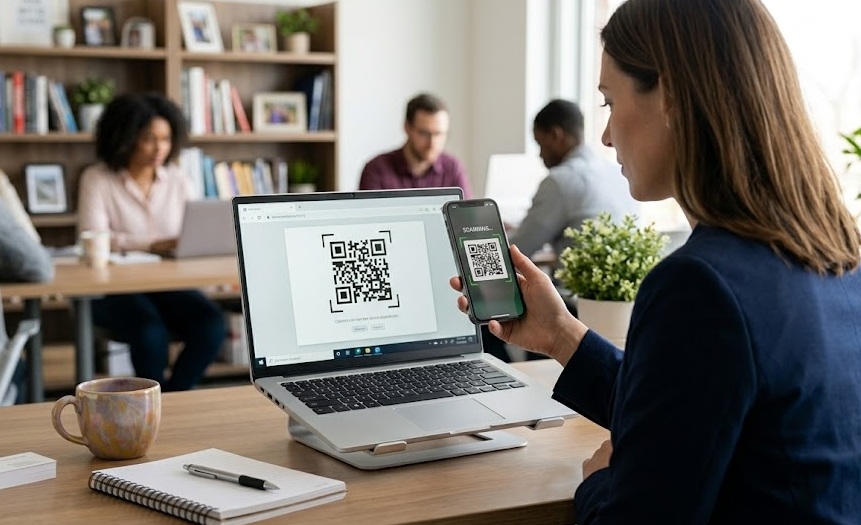
The camera can't point at itself — but three methods can. Here's which one to use for your phone, and when each one applies.
Updated April 2025
Tested on iOS 18 & Android 15
Done in under 60 seconds
Direct Answer
Your camera app won't work — it can't scan a code that's on its own screen.
On iPhone (iOS 16+): open the image in Photos and tap the Live Text icon.
On Android: screenshot the code, open it in Google Lens, tap the code.
If neither works: upload the screenshot to webqr.com — it decodes any QR code from a photo, on any phone.
Your phone's camera is built to scan codes in the physical world — on paper, packaging, or another screen. When the QR code is on your screen, the camera has no way to point at it. It's the same reason you can't take a photo of the inside of your own eye.
This comes up more than you'd think: a ticket confirmation in email, a 2FA setup code, a login QR for a shared account, a Wi-Fi password in a PDF. In all these cases, the code lives on your device and needs to be processed on your device.
The fix is to treat the QR code as an image file rather than a physical object — using tools that read QR codes from gallery photos rather than live camera feeds.
the methods
3 Methods — Ranked by Speed
Click any method to expand the full step-by-step. Start with the one for your phone type.
01
iPhone: Photos App (Live Text)FASTEST · iOS 16+
Built in — no download needed. Takes under 10 seconds.
▾
Apple added native QR decoding to the Photos app in iOS 16, powered by the same Live Text engine that lets you copy text from photos. No app, no account, nothing to download.
Step by step
Open the Photos app and find the image with the QR code. If it's in an email or message, long-press → "Save to Photos" first.
Tap the image to open it full-screen (don't tap Edit).
Tap the Live Text icon — bottom-right corner, looks like lines in a box. If you don't see it, Live Text may be off in Settings → General → Language & Region.
Tap the QR code — a yellow box highlights it and options appear: "Open in Safari," "Copy Link," etc.
Tap the action you want. Done.
tip
Works inside Mail and Files too — long-press any image with a QR code and iOS often shows "Open Link" directly, without saving to Photos.
limitation
Requires iPhone XS (2018) or later running iOS 16+. iPhone SE 3rd gen on iOS 15 shows Live Text in the camera but not in Photos.
02
Android: Google Lens on a ScreenshotRELIABLE · Android 8+
Pre-installed on most Android phones. Works in under 30 seconds.
▾
Google Lens is more flexible than most people realize — it can decode QR codes from images already in your gallery, not just through the live camera.
Step by step
Screenshot the QR code — Volume Down + Power on most Android phones. It saves automatically to your gallery.
Open Google Photos and find the screenshot (usually at the top of Recents or in the Screenshots album).
Tap the Lens icon at the bottom of the screen — looks like a camera with a dot in the center.
Tap the QR code highlight — Lens overlays a colored box on the code. A sheet appears with the decoded link.
Tap "Open website" or the relevant action.
alternative path
Open the Google app → tap the camera icon in the search bar → "Search a photo" → select your screenshot. Lens works the same way.
03
Any Phone: Online QR ReaderUNIVERSAL FALLBACK
Works on any phone, any iOS/Android version. Needs internet. Not for auth codes.
▾
This works regardless of phone model, iOS version, or Android build — no app required. The tradeoff: you're uploading an image to a third-party site. Fine for menus, tickets, and Wi-Fi codes. Not for 2FA or authentication codes.
Step by step
Screenshot the QR code and confirm it saved to your gallery.
Tap "Upload a file" and select your screenshot. The site accepts JPEG and PNG.
The decoded URL or text appears immediately. Tap to open or copy to clipboard.
do not use for
2FA setup codes, authenticator app imports, or any QR code that grants account access. Use Methods 1 or 2 for those — both stay on-device.
decision guide
Which Method Fits Your Situation
Match your phone and situation to the right tool.
Situation
Best method
Why
Speed
iPhone (iOS 16+)
Method 1 — Photos app
Built in, no steps needed
~10 sec
iPhone (iOS 15 or older)
Method 3 — Online reader
Live Text in Photos not available
~60 sec
Android with Google Photos
Method 2 — Google Lens
Accurate, stays on-device
~20 sec
Android without Google apps
Method 3 — Online reader
Universal fallback
~60 sec
2FA or authentication code
Method 1 or 2 only
Never upload security codes externally
On-device
QR in a PDF or email
Screenshot → Method 1 or 2
Save as image first
~30 sec
common case
Specifically: Scanning from Screenshots
Screenshots are the most common case — a QR code arrives in a text message, email, or PDF. The good news: all three methods above work perfectly with screenshots. A screenshot is just an image file.
Take the screenshot
iPhone: Side button + Volume Up. Android: Volume Down + Power. The image saves to your gallery automatically.
Open it in the right app
iPhone: Photos app → tap the screenshot → Live Text icon. Android: Google Photos → tap screenshot → Lens icon.
Tap the QR code
Both apps will highlight the code with a colored overlay. Tap it and choose your action.
about image quality
QR codes are inherently resilient — designed to be readable even when damaged or low-resolution. A normal phone screenshot is always sufficient. If scanning fails, the issue is almost always the method, not the image quality.
before you tap
30-Second Security Check
QR codes are just encoded links. All three methods show you the URL before you open it — get in the habit of reading it.
✅
Generally safe to tap
Links from companies you contacted, HTTPS URLs from recognizable domains, event tickets, restaurant menus, Wi-Fi codes from venues.
⚠️
Pause and inspect
Links on public stickers, payment codes at unfamiliar terminals, URLs with mismatched domains like "paypa1.com".
🔒
For 2FA codes
Never upload authentication QR codes online. Use Method 1 (iPhone Photos) or Method 2 (Google Lens) — both are fully on-device.
📋
When in doubt
All methods let you copy the decoded URL instead of opening it. Paste it into your browser's address bar and inspect before committing.
interactive
Method Finder
Select your phone and QR code type to get a personalized recommendation.
📱
Which method should I use?
Select your situation → get a direct answer
What's your phone and QR code type?
faq
Frequently Asked Questions
Yes — but not with your camera app. Use the iPhone Photos app (tap Live Text on the image), Google Lens on a screenshot (Android), or upload the screenshot to webqr.com. All three work reliably.
On iPhone: long-press the photo in the conversation — iOS often shows "Open Link" or "Scan QR Code" directly. If not, open the photo full-screen, share → "Open in Photos," then use the Live Text method. On Android: long-press and share to Google Lens, or save it and open in Google Photos.
Possible causes: iOS older than 16 (Live Text in Photos requires iOS 16+); Live Text disabled in Settings → General → Language & Region; Google Lens not installed or disabled. Try Method 3 (webqr.com) as a guaranteed fallback — it works on any phone.
Open the PDF, navigate to the QR code page, and screenshot it. Then use Method 1 (iPhone Photos) or Method 2 (Google Lens) on the screenshot. On iPhone, long-pressing images inside PDFs opened in Safari sometimes shows "Open Link" directly.
For everyday codes (menus, tickets, URLs) — yes. You're uploading a screenshot to a web service that returns the decoded link. The one exception: never upload 2FA or authentication codes to an external site. Use the on-device methods for those.
Yes. Samsung's camera doesn't read from gallery images, but Google Lens does. Open the screenshot in Google Photos, tap the Lens icon, and tap the QR code. On newer Samsung devices (One UI 6+), you can also long-press an image and choose "Open with Google Lens."