The screen is cracked. Or it won't turn on. Either way, your photos are probably still there — you just need to reach them through a different door. Here's every door, in order of effort.
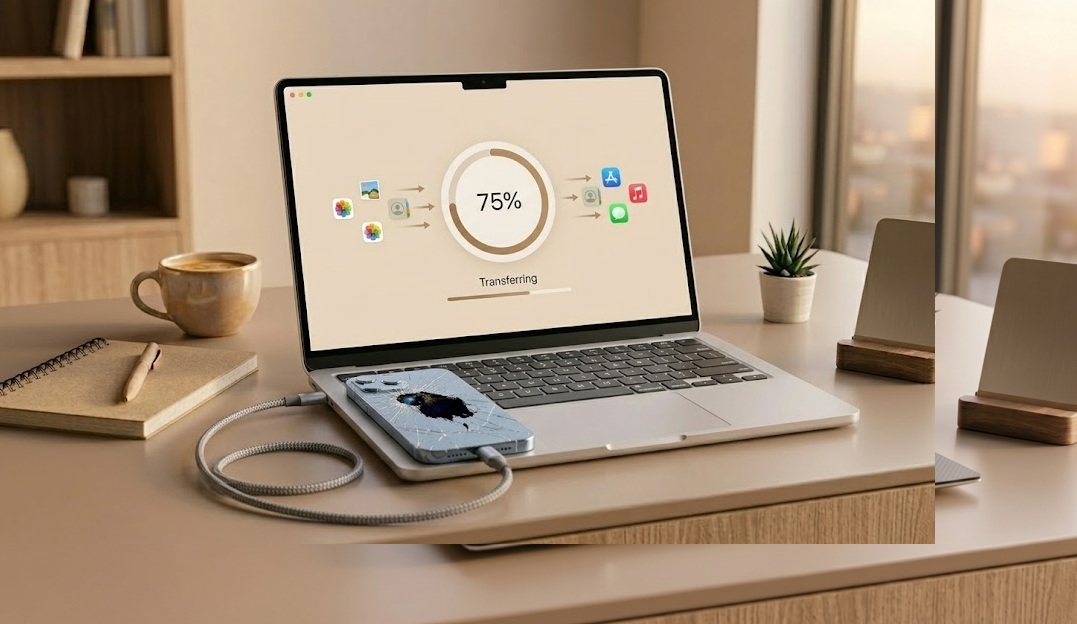
If iCloud Photos was turned on, your photos are already online — go to icloud.com from any browser, sign in, and download them. If you had an iTunes or Finder backup, your photos are in there and can be restored to a new iPhone. No backup at all? Connect the broken iPhone to a trusted computer via USB and see if it's recognized. If it is, third-party recovery software can often extract the photos directly. If nothing works, a professional data recovery service is the last option — expensive, but real.
Here's something most people don't realize: if iCloud Photos was enabled, the photos were never only on the phone. They were syncing to Apple's servers in the background, silently, every time the phone was on WiFi. The phone being broken doesn't change that. The photos are still online.
So before you panic or start downloading recovery software, open any browser — on a laptop, a friend's phone, a library computer, anything — and go to icloud.com. Sign in with the same Apple ID that was on the broken phone. Open Photos. If your library is there, you're done. Download everything and breathe.
Within iCloud Photos, look for the Recently Deleted album. Apple holds deleted photos there for 30 days before permanently removing them. If photos were erased — accidentally or not — they're likely still sitting there waiting to be recovered.
If icloud.com shows an empty library or only partial photos, that means either iCloud Photos wasn't enabled, or the sync was behind at the time of the damage. In that case, keep reading — there are still paths forward.
iCloud Photos and iCloud Backup are different things. If you had iCloud Photos off but iCloud Backup on, your camera roll photos would have been included in the nightly backup — but they won't appear in the Photos section of icloud.com. You'd need to restore the backup to get them back, which is covered in Method 2 below.
Most people solve this in the first two methods. The list gets progressively more technical and expensive as you go — but it also covers progressively harder situations. Start at the top and stop when it works.
If iCloud Photos was enabled before the damage, this takes about three minutes. Your photos live in Apple's servers — the broken phone is irrelevant.
If you ever plugged your iPhone into a Mac or PC and did a backup, that backup file likely contains your photos. You'll need a working iPhone (a new or borrowed one) to restore it to.
If the screen is cracked but the phone still turns on, or if it's unresponsive but still powers up, try connecting it to a computer you've connected it to before. If the phone has been trusted on that computer previously, Windows will recognize it as a camera device and you may be able to browse and copy photos directly — no software needed.
If the phone connects to a computer but standard file browsing doesn't show photos, recovery tools can do a deeper scan of iPhone storage. Tools like Dr.Fone, iMobie PhoneRescue, and Tenorshare UltData connect to the device and attempt to recover photos — including deleted ones — by scanning the underlying storage.
These tools cost $40–$80 typically. Most offer a free scan to show what they can find before you pay. Worth doing the scan first to know what's actually recoverable before committing money.
If the phone's internals are fine but the screen is shattered and unresponsive, fixing the screen might be the simplest path to your photos. Apple Stores and authorized repair shops can replace iPhone screens — after which you can access everything normally.
This is especially sensible if you were going to repair the phone anyway, or if you don't have iCloud backup and the other methods haven't worked.
If the phone won't turn on at all, won't connect to a computer, and has no backup — professional recovery services can work directly with the iPhone's storage chip. This is specialized lab work: they disassemble the device, sometimes remove and read the flash storage directly.
It's expensive, not always successful, and takes time. But it's the last realistic option when everything else has failed. If the photos are truly irreplaceable, it can be worth the cost.
Don't put a water-damaged iPhone in rice, use a hair dryer on it, or try to charge it immediately. Heat and moisture together can permanently damage the storage chips and end any chance of recovery. If water damage is the issue, let the phone dry completely in a dry environment first — at least 48 hours — before attempting anything.
A different but related question: what if the iPhone isn't broken, but photos were deleted — accidentally, or because you deleted the wrong album, or because someone else did?
Apple keeps deleted photos in a hidden holding area for 30 days before permanently erasing them. On a working iPhone: open Photos → Albums → scroll to the bottom → Recently Deleted. On icloud.com: go to Photos → Recently Deleted. Tap the photo and hit Recover.
Once photos leave Recently Deleted, they're gone from the device and from iCloud. But they may still exist in a backup. If you have an iTunes or Finder backup made before the photos were deleted, you can restore that backup to get them back — with the trade-off that any data added after that backup date will also be lost.
Before going through backup restoration, check Google Photos, Dropbox, WhatsApp, Instagram saved posts, and any messaging apps where you may have sent or received the photos. Often, copies exist in places people forget. It's a five-minute check that can save a lot of trouble.
| Situation | Best Method | Cost | Success Rate |
|---|---|---|---|
| Deleted, within 30 days | Recently Deleted folder | Free | 100% — they're still there |
| iCloud Photos was on | icloud.com → Photos | Free | Very high |
| iTunes/Finder backup exists | Restore backup to new iPhone | Free | High (limited to backup date) |
| Screen broken, phone works | USB + Image Capture / File Explorer | Free | Good (if previously trusted) |
| No backup, phone connects to PC | Third-party recovery software | $40–$80 | Moderate (varies by tool) |
| Phone won't turn on, no backup | Professional recovery service | $300–$1,500+ | Low–moderate |
Two questions to point you to the method most likely to work.
Tell us about your iPhone and what you're trying to recover