The camera is hardware. The app is what makes it useful. The wrong app locks your footage behind a paywall, floods your phone with false alerts, or stops working the moment you switch phones. Here is how to pick the right one.
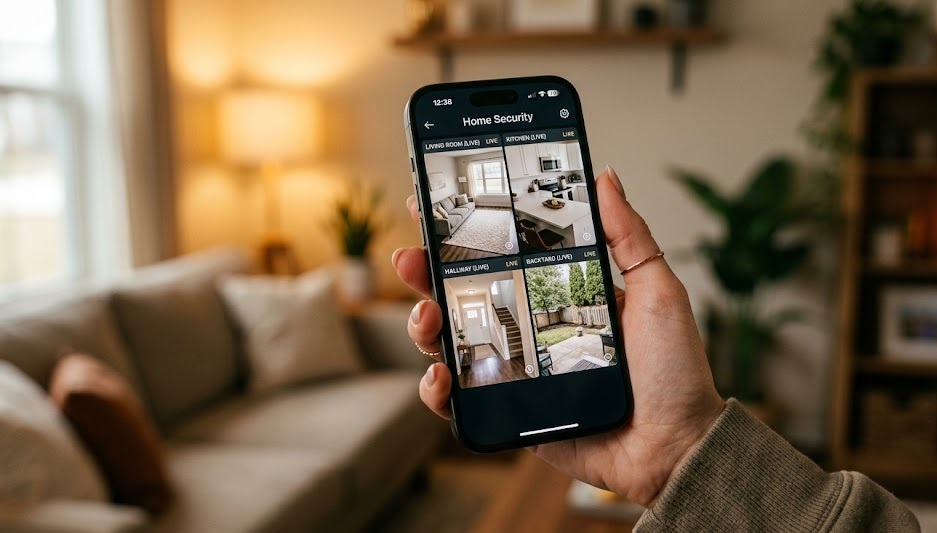
For free phone-to-camera setups, Alfred Camera is the top pick — 70 million users, live view, motion alerts, two-way audio, all free. For brand-specific cameras, use the manufacturer's own app (Eufy, Arlo, Wyze). For mixed-brand or professional setups, iSpyConnect (free, self-hosted) or Blue Iris (paid, Windows) give you full control over all cameras in one interface.
Most people confuse these two categories and end up with the wrong tool.
These apps only work with cameras from the same manufacturer. They offer the deepest integration — firmware updates, proprietary AI features, subscription tiers tied to the hardware. Use these if all your cameras are from one brand. Never buy a camera without checking whether its app works on your phone's OS version first.
These apps connect to cameras from multiple brands using standard protocols (RTSP, ONVIF). Alfred repurposes old smartphones as cameras. iSpy and Blue Iris connect to IP cameras and NVRs via network streams. Use these if you have a mixed-brand setup or cameras without a good native app.
Buying all cameras from one brand: use the brand app. Already own cameras from multiple brands: use a universal app. Repurposing old phones as cameras: use Alfred. Running a professional home NVR: use Blue Iris or iSpyConnect.
Turns old smartphones into cameras. 70 million+ users. Free plan: live streaming, motion detection, 7-day cloud clips, two-way audio, siren. Cross-platform (Android ↔ iOS). Setup takes 3 minutes. The gold standard for zero-cost home security camera apps.
Works with all Eufy cameras. No cloud subscription required — local storage via HomeBase hub included with the hardware. Motion detection, face recognition, remote live view, event history. If you want no monthly fees and a polished app, Eufy is the ecosystem to buy into.
Central hub for Google Nest cameras and hundreds of third-party devices. Live view on Nest Hub displays. Smart alerts that distinguish people from animals (Nest cameras). Free 3-hour event history included. Best if you already use Google Assistant or Nest devices.
Free plan supports 4 cameras simultaneously. Works with old smartphones and IP cameras. Motion zones, remote pan control, scheduled recording. Clean interface. Available Android and iOS. Best choice when managing multiple cameras without a monthly subscription.
Fully open-source, self-hosted. All recordings stay on your local machine or NAS — no cloud involved. Supports hundreds of camera brands via RTSP/ONVIF. Fine-grained motion zones, scheduling, and trigger actions. Runs on Windows. Requires more setup but gives you complete data ownership.
Windows-based NVR software — one-time purchase around $69.99. Connects to cameras from any brand. Handles up to 64 cameras. AI-powered person/vehicle detection, push alerts, rich scheduling, remote access. Preferred by home security enthusiasts who want full control without recurring fees.
A camera that alerts you every time a shadow moves is worse than no alerts. Good apps use AI to distinguish people from cars, animals, and environmental movement. The result: fewer alerts, all of them meaningful. Wyze, Eufy, and Google Nest do this well in 2026. Many cheap apps still rely on dumb pixel-change detection.
Live view should load in under 3 seconds. It should work on LTE and 5G, not just home Wi-Fi. Apps that require port forwarding or VPN setup to work remotely are a red flag for most home users. Test remote access from a cellular connection before committing to a system.
The free tier should include event clips. You need to see what triggered an alert, not just know that something happened. Apps that send motion notifications but require a subscription to see the clip are frustrating and borderline deceptive. Check the free tier footage policy before you buy the camera.
Talk to delivery drivers. Greet visitors before opening the door. Deter intruders with a voice response. Two-way audio is standard on modern cameras, but the quality varies enormously. Read user reviews specifically about audio delay and clarity — laggy audio makes real-time communication unusable.
What happens when your internet goes down? Does the camera still record to a local MicroSD card? Do alerts still work on your home network? An app that goes completely dark during an outage fails at the worst possible time. Choose platforms that support local recording as a fallback.
Getting 50 motion alerts per day trains you to ignore all of them. The most important app feature in 2026 is not resolution or cloud storage — it is intelligent alert filtering. An app that sends fewer, more accurate alerts is dramatically more useful than one that notifies you every time a cloud moves past a window.
| App | Free Tier Includes | Paid Plan | What You Gain with Paid |
|---|---|---|---|
| Alfred Camera | Live view, motion alerts, 7-day clips | ~$3.99/mo | Motion zones, 30-day history, no ads |
| Eufy Security | Full local storage, live view, alerts | None required | N/A — all features included |
| Wyze | Live view, motion alerts, 14-day events | $1.99/mo/cam | 24/7 cloud recording, AI person detection |
| Google Home / Nest | 3 hours event clips, live view | $8/mo (Nest Aware) | 30-day history, familiar face alerts |
| Arlo | 30-day activity zone history | $7.99/mo | 24/7 recording, e911 integration, AI detection |
| iSpyConnect | Everything — fully free, local only | None required | N/A — open-source, self-hosted |
For most households, the free tiers of Wyze or Eufy cover everyday needs. The main reason to upgrade is 24/7 continuous recording versus event-only clips — and you only truly need continuous recording if you are investigating incidents that did not trigger motion detection.
Works for any brand-specific app. Steps apply to Wyze, Arlo, Eufy, and most others.
Search the camera brand's name in the App Store or Google Play. Create an account with your email. Use a strong, unique password — your security camera footage is accessible from this account. Enable two-factor authentication immediately after setup.
Open the app and tap "Add Device" or the "+" icon. Follow the on-screen pairing process — usually scanning a QR code on the camera or holding a setup button. The camera connects to your Wi-Fi network through the app. This step takes 2–5 minutes.
Go to the camera settings and enable motion detection. Set your notification preferences — push alerts, email, or both. If the app supports activity zones, draw a zone around the area you actually want monitored. This single step eliminates 80% of false alerts.
Turn off your home Wi-Fi on your phone (use cellular data only). Open the app and tap the live view for your camera. If the stream loads, remote access is working. If it does not, check that the camera's port settings and your router's firewall are not blocking the connection.
The right app makes your cameras more useful. Whether you want free remote viewing, no subscription, or full professional control — there is an option on this list that fits.
See Budget Camera Picks →