Show RAM Usage Ubuntu: 6 Commands That Actually Work
From a single quick command to real-time process monitoring — here's how to see exactly what's eating your memory.
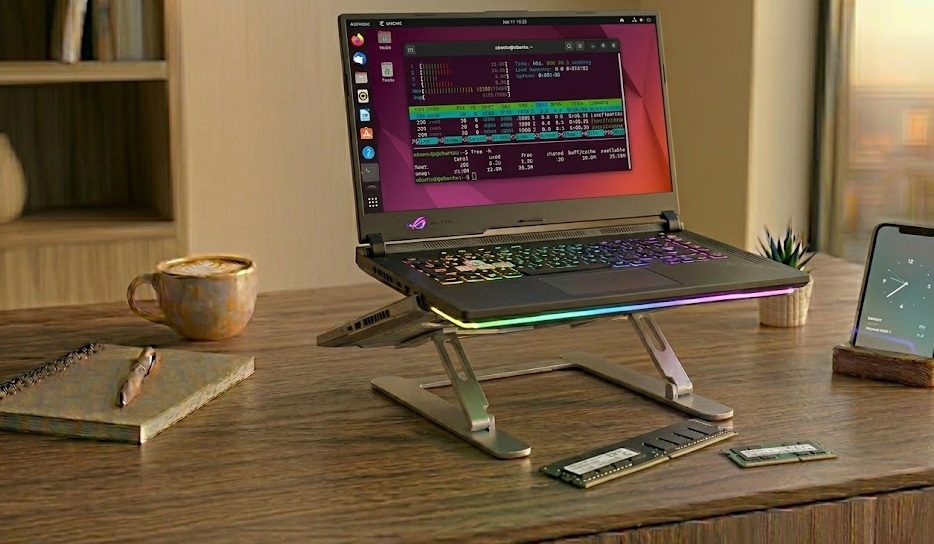
Run free -h in the terminal to see RAM usage instantly. For a live view with per-process breakdown, use htop. The "available" column in free -h is the number that actually matters — not "free".
What's in this guide
The 6 Commands You Need
You opened a terminal. Good. Here's what to run, in order of usefulness:
1. free -h (fastest overview)
This is your go-to. It shows total, used, free, shared, buffer/cache, and available memory in one line.
2. htop (live monitoring)
Press M inside htop to sort by memory usage. Press F10 or q to quit. This gives you live per-process RAM consumption — far more useful than a snapshot.
3. vmstat -s (detailed memory stats)
4. Top 10 processes by RAM
5. /proc/meminfo (raw kernel data)
6. smem (per-process with shared memory)
According to the Linux kernel documentation, /proc/meminfo's MemAvailable field provides an estimate of how much memory is available for starting new applications without swapping[source] — which is more useful than "MemFree" in most practical situations.
Reading the Output Correctly
Here's what free -h actually outputs and what each column means:
The column people get wrong most often is "free". 6.8GB looks great — but it doesn't mean 6.8GB is actually available for your next app. Linux aggressively uses spare RAM as disk cache. That's by design, and it's a good thing.
The number that matters is "available" — 10Gi in this example. That's what Linux will hand to a new process if it needs it. Free + most of the buffer/cache. So don't panic when "free" looks low.
| Symptom | Likely Cause | Fix Difficulty |
|---|---|---|
| available RAM under 500MB | Too many processes, memory leak | Medium |
| Swap in use heavily | RAM genuinely exhausted, Linux swapping | Medium–Hard |
| One process using >2GB unexpectedly | Memory leak or runaway process | Easy (kill it) |
| RAM usage spikes then drops | Normal cache behavior | None needed |
| System sluggish despite low "used" value | Swap thrashing | Medium |
What Normal RAM Usage Looks Like on Ubuntu
Fair warning: "normal" varies a lot by your desktop environment. Here are rough idle baselines:
| Ubuntu Version / Desktop | Typical Idle RAM | Notes |
|---|---|---|
| Ubuntu Server (no GUI) | 150–300MB | Minimal services only |
| Ubuntu Desktop (GNOME) | 1.5–2.5GB | GNOME Shell is heavy |
| Xubuntu (XFCE) | 500–900MB | Lightweight desktop |
| Lubuntu (LXQt) | 300–600MB | Very light |
| Ubuntu with browser open | 3–5GB typical | Chromium is the biggest factor |
Microsoft's documentation on Windows Subsystem for Linux notes that Ubuntu 22.04 running under WSL2 uses approximately 400–600MB at idle[source], which gives a useful comparison baseline for headless Ubuntu usage.
What does your "available" column show in free -h?
Quick Fixes for High RAM Usage
Quick Wins (2 minutes)
Drop the page cache manually: If RAM looks full but it's mostly cache, you can force Linux to release it: sudo sh -c 'echo 3 > /proc/sys/vm/drop_caches'. This is safe and temporary.
Kill the heaviest process: Find the PID in htop, press k, then Enter to kill it. For a browser, just close the tabs instead.
Disable unused startup services: Run systemctl list-units --type=service --state=running and disable anything you don't recognize or need.
Deeper Fixes
Increase your swap space: If you're consistently running out of RAM, a larger swap file buys time. Ubuntu's official documentation recommends swap of at least equal size to RAM for systems with 2GB or less physical memory[source].
Switch to a lighter desktop: GNOME uses roughly 3x more RAM than XFCE at idle. If you're on an older machine, switching desktops is the single biggest RAM win available.
Profile memory leaks: Use valgrind or the built-in top with repeated snapshots to catch processes that grow over time without releasing memory.
What Not to Do
1. Don't panic when "free" is near zero. Linux uses free RAM as cache. That's not a problem, it's a feature.
2. Don't disable swap entirely on a low-RAM system. Without swap, the OOM killer will start terminating processes when RAM fills up — often randomly.
3. Don't run drop_caches in production regularly. Dropping the page cache forces the disk to re-read everything, causing a temporary performance hit.
4. Don't kill processes you don't recognize without checking. Some system daemons look unfamiliar but are critical. Google the process name first.
How to Diagnose RAM Usage — Step by Step
If You Only Do One Thing
Run free -h right now and look at the "available" column — not "free." If available is above 1–2GB and swap is at zero, your RAM situation is fine regardless of what "used" says. Most people troubleshoot a RAM problem that doesn't exist because they're reading the wrong column. Check the right number first.
People Also Ask
The quickest command is free -h, which shows total, used, and available RAM in human-readable format. For live monitoring by process, use htop.
A minimal Ubuntu server uses 150–300MB. A full GNOME desktop typically uses 1.5–2.5GB at idle. Both are normal for their respective configurations.
Run ps aux --sort=-%mem | head -10 for a ranked list, or open htop and press M to sort by memory interactively.
Linux uses spare RAM as disk cache — this is normal and intentional. Look at the "available" column in free -h rather than "used." If available is healthy, your system is fine.