Why laptops overheat — the honest list
Here's the thing about laptop heat: it rarely just "happens." Something specific changed, or something slowly got worse. And knowing which one you're dealing with determines everything about how you fix it.
The most common culprit, by far, is dust. Over months of use, laptop fans pull in not just air but everything floating in it — hair, lint, skin cells, pet fur. It accumulates in the heatsink fins and eventually cuts airflow by 50% or more. The laptop isn't broken. It's just suffocating.
The usual suspects, ranked by frequency
1. Blocked vents from dust buildup. The number one cause. A two-year-old laptop can have significant accumulation inside. You won't see it from the outside — the damage is inside the heatsink fins.
2. Surface placement. Using your laptop on a bed, couch, or carpet seals the bottom vents completely. No fresh air gets in. It's like running with your hands over your mouth. The fix is a hard, flat surface — or even a hardcover book under the rear.
3. Runaway background processes. A browser tab with a memory leak. A software update happening silently. An antivirus scan kicking off mid-video call. Any of these can spike CPU usage to 100%, generating heat that has nothing to do with what you're actually doing.
4. Degraded thermal paste. The thermal paste between your CPU/GPU and the heatsink doesn't last forever. After 2–3 years, it dries out and loses conductivity. Heat transfer drops. Temperatures creep up. This one requires opening the laptop, but it's often a $5 fix with a $40 improvement in temps.
5. Outdated BIOS or drivers. Manufacturers release firmware updates that improve fan curves and power management. Missing them means your cooling system isn't as smart as it could be. This is a five-minute fix most people never think of.
A new laptop can overheat too — especially under heavy load in a hot room with no airflow. Overheating isn't just an "old laptop" problem. It's a thermal management problem.
Safe temperature ranges — actual numbers
Most guides tell you "if it feels hot, it's probably overheating." That's not very useful. Let's use real numbers instead.
| Situation | CPU Temp | GPU Temp | Status |
|---|---|---|---|
| Idle (desktop, light browsing) | 30°C – 50°C | 30°C – 45°C | ✓ Normal |
| General use (documents, video calls) | 50°C – 70°C | 45°C – 65°C | ✓ Normal |
| Heavy load (gaming, video editing) | 70°C – 85°C | 65°C – 85°C | ✓ Acceptable |
| High load, approaching limit | 85°C – 90°C | 85°C – 90°C | ⚠ Watch it |
| Thermal throttling zone | 90°C – 95°C | 90°C – 95°C | ✗ Problem |
| Emergency shutdown territory | 95°C+ | 95°C+ | ✗ Fix now |
To actually check your temperatures: on Windows, download HWMonitor or Core Temp (both free). On Mac, iStatMenus or the free Stats app shows CPU temps in the menu bar. Run it for 10 minutes while doing your normal tasks. That's your baseline.
Don't just check peak temps — watch the average over 5–10 minutes. A momentary 90°C spike during a CPU burst is normal. Sustained 90°C+ during light tasks is the problem.
Software fixes: free, and more effective than you think
Before you buy a cooling pad or reach for a screwdriver, do these. Seriously. Software causes more overheating than most people realize — and fixing it costs nothing.
Check Task Manager right now
Open Task Manager (Windows: Ctrl + Shift + Esc / Mac: Activity Monitor) and sort by CPU usage. If something unexpected is sitting at 30%+ CPU — a browser extension, a background sync, an antivirus scan — that's your culprit. Close it. Wait two minutes. Check your temps again.
Chrome is a particular offender. Each tab runs as a separate process, and a single tab with a web app or autoplay video can consume as much CPU as a game would five years ago. Try the same browsing session in a different browser and compare temps.
Set a balanced power plan
If your laptop is set to "High Performance" mode while plugged in, the CPU is constantly boosting even when it doesn't need to. Switch to "Balanced" — it lets the chip breathe without any noticeable real-world slowdown for most tasks.
On Windows: go to Settings → Power & Battery → Power Mode. On Mac: System Settings → Battery, and check that "High Power Mode" isn't always on.
Update BIOS and drivers
This one's unglamorous but genuinely helpful. Manufacturers push firmware updates that improve fan behavior — how quickly they spin up, at what temperature, and for how long. Check your laptop manufacturer's support page for the latest BIOS version. If yours is more than a year old, update it.
Don't install third-party "speed booster" or "RAM optimizer" software. They rarely help and often add more background processes — making the heat problem worse, not better.
Check for malware
A laptop that started running hot suddenly — with no other changes — sometimes has a cryptocurrency miner running silently in the background. Run a full Malwarebytes scan. It's free. It takes 15 minutes. And occasionally it's exactly the problem.
Cleaning and airflow: the stuff that actually moves the needle
If software didn't fix it, something physical is blocking the cooling system. And here's the honest truth — cleaning is the single most impactful thing you can do for a laptop that's more than 18 months old.
Move it to a hard, flat surface first
This takes five seconds and costs nothing. Lift your laptop off any soft surface and put it on a desk, tray, or even a hardcover book. The bottom vents (where most laptops pull in cool air) need at least 5–10mm of clearance. A blanket seals them completely. That's like running a car engine with the hood sealed — eventually, something gives.
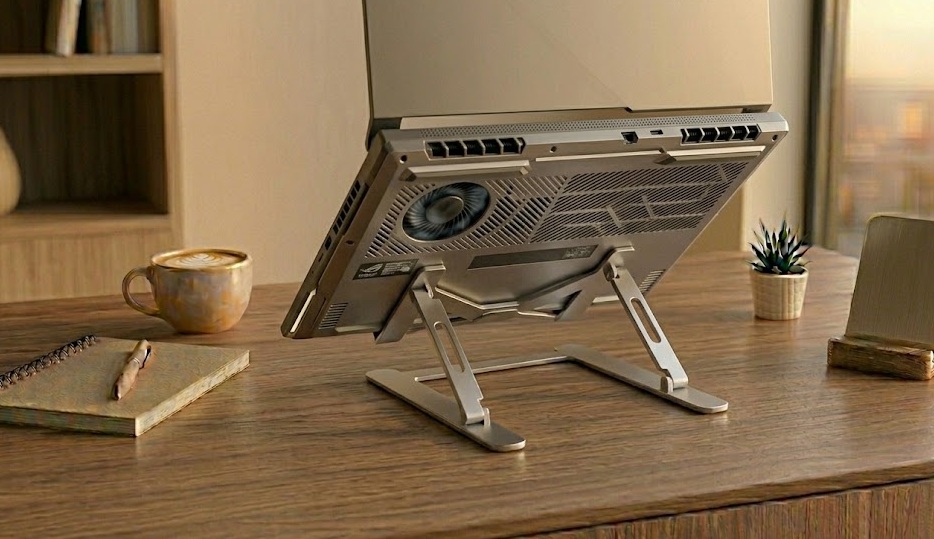
A laptop stand improves this further by elevating the back edge, improving both airflow and your posture. A decent one costs $15–30 and makes a real difference in sustained temperatures.
Clean the vents with compressed air
Power off completely — not sleep, actually off. Unplug everything. Then use a can of compressed air to blast through every vent on the bottom and sides. Use short bursts. Hold any visible fans in place with a toothpick so they don't free-spin (that can damage the bearing).
You might be surprised by what comes out. Sometimes it's a fine grey dust. Sometimes it's an actual felt pad of compacted lint. Both kill airflow equally well.
Do this outside or over a trash can. The dust cloud is real. Don't do it at your desk and then complain that your keyboard looks like a nature documentary.
Open the bottom panel for direct access
If compressed air through the vents isn't enough — and after a few years, it often isn't — remove the bottom panel (usually 6–10 Phillips screws). You'll see the fans and heatsink directly. Clean the heatsink fins with compressed air and a soft brush. This takes 20 minutes and is absolutely worth it.
A cooling pad is worth adding at this stage too. They typically drop temperatures by 5–10°C — meaningful if you're gaming or doing video work, less so for light use. They're a supplement, not a replacement for proper cleaning.
When you need to go deeper: thermal paste and fans
Okay. You've cleaned the vents. You're on a hard surface. You've sorted the software. Temps are still climbing past 90°C under any real load. Now we're talking hardware.
Replacing thermal paste
Thermal paste sits between the CPU (and sometimes GPU) die and the heatsink. Its job is to fill microscopic air gaps and transfer heat efficiently. The problem: it dries out. After 2–3 years of heat cycles, it hardens, cracks, and loses most of its conductivity.
Replacing it yourself requires removing the bottom panel, disconnecting the heatsink, cleaning off the old paste with isopropyl alcohol, and applying a fresh pea-sized amount of new paste (Thermal Grizzly Kryonaut or Arctic MX-6 are reliable choices). The improvement is often dramatic — some users report drops of 10–20°C. That's not a tweak, that's a transformation.
It's not a beginner job, but it's also not surgery. iFixit has model-specific guides for most laptops. If you're even slightly hesitant, a local repair shop charges $30–60 for the service.
Check your warranty status first. Opening the laptop voids most manufacturer warranties. If your device is under a year old and consistently overheating, contact support before touching the hardware.
Fan replacement
Fans fail. They get louder over time as bearings wear, and eventually they slow down or stop entirely. If your fan sounds like a blender full of gravel, or if it runs at maximum speed constantly but temps are still high, the fan itself may be the problem. Replacement fans for most models cost $15–35 online.
🌡️ Temperature Diagnosis Tool
Tell us your current temps and situation — we'll tell you what to do next.
5 habits that keep your laptop cool long-term
Fixing overheating is one thing. Not having to fix it again is another. These habits don't require any hardware or software — just a slightly different way of using your machine.
FAQ
During normal use, your CPU should sit between 40°C–70°C. Under heavy load (gaming, rendering), up to 85°C is acceptable. Anything consistently above 90°C is a problem — above 95°C triggers thermal throttling and risks long-term component wear. Check with HWMonitor or Core Temp to see your actual numbers.
Sudden overheating (when nothing else changed) usually points to a software culprit — a background process, a bad Windows update, or malware. Open Task Manager and sort by CPU usage. If that's clean, check whether the surface placement or the season changed (hotter ambient temps matter). If the problem started after a few years of smooth use, dust buildup is the likely explanation.
A good cooling pad drops temperatures by 5–10°C — genuinely useful for gaming or sustained heavy work. But it doesn't fix a clogged fan or degraded thermal paste. Think of it as a support act, not the headliner. If your laptop is overheating severely, clean it first. Then add a cooling pad if you want an extra buffer.
Every 4–6 months for most people. If you have pets, live in a dusty environment, or use your laptop on carpet often, bump that to every 3 months. Your ears are a good indicator too — if the fan is noticeably louder than it used to be, that's usually dust, not a dying fan.
Yes — sustained high temperatures degrade thermal paste, weaken solder joints on the motherboard, and accelerate wear on the CPU, GPU, and battery. Most laptops have thermal shutdown protection to prevent catastrophic failure, but relying on it regularly is like relying on a circuit breaker as a power management strategy. Address the root cause.