Most guides skip the part that trips people up: there are two different passwords on your router. Here's the one that matters for Wi-Fi — and exactly how to change it in 3 minutes.
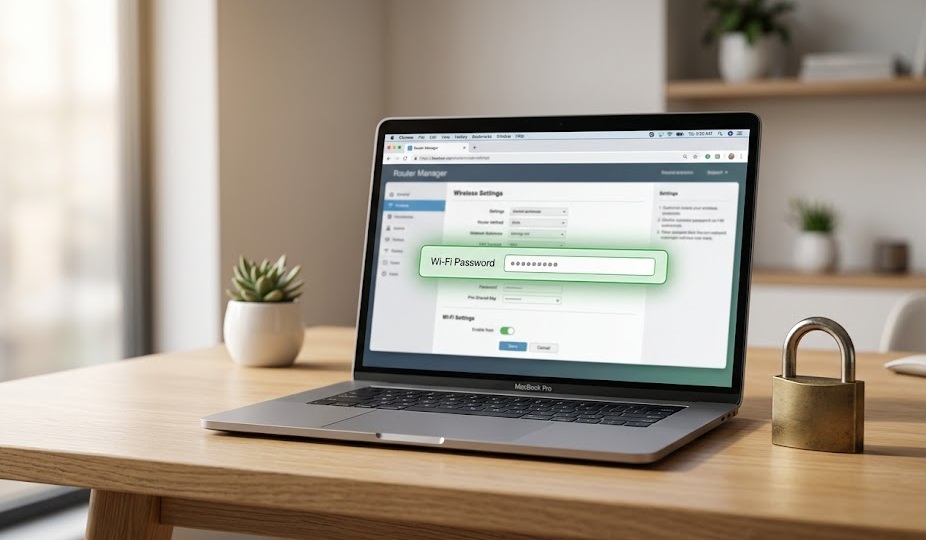
Log in to your router at 192.168.1.1 or 192.168.0.1. Go to Wireless → Wireless Security (or similar). Find the Password, Passphrase, or PSK Password field. Type your new password and click Save. Every device on your network will disconnect and need to reconnect with the new password.
Most people get confused at step one because routers have two completely separate passwords. Changing the wrong one does nothing for your Wi-Fi.
Also called: network key, passphrase, PSK password, wireless password.
This is what you type on your phone or laptop to join the Wi-Fi network. It's stored in your device's memory so you only enter it once per device.
Also called: router login password, admin password.
This is what you type at 192.168.1.1 to access the router's configuration page. It controls who can change router settings. Printed on the router label.
Changing one does not change the other. You use the admin password to log in and change the Wi-Fi password.
Use a device already connected to your Wi-Fi — or plug an Ethernet cable directly into a router port. Ethernet is more reliable; a Wi-Fi session will drop when you save the new password.
Open a browser. Type your router's IP in the address bar (not the search bar): try 192.168.1.1 first, then 192.168.0.1. If neither works, open Command Prompt on Windows, type ipconfig, and use the Default Gateway address.
Username is usually admin. Password is printed on the label on the back or bottom of your router. Enter these — not your Wi-Fi password.
Look for Wireless → Wireless Security, Wi-Fi Settings, or WLAN. The exact path varies — see the brand-specific guide below.
Find the field labeled Password, Passphrase, PSK Password, or Network Key. Clear the old value. Type your new password.
Click Save or Apply. The router restarts its wireless radio. Every connected device drops off the network. Reconnect each device using the new password.
| Brand | Login URL | Path to Wi-Fi Password |
|---|---|---|
| Netgear | routerlogin.net or 192.168.1.1 | Basic → Wireless → Password (or Passphrase) |
| TP-Link | tplinkwifi.net or 192.168.0.1 | Wireless → Wireless Security → PSK Password |
| Asus | router.asus.com or 192.168.1.1 | Wireless → General → WPA Pre-Shared Key |
| Linksys | myrouter.local or 192.168.1.1 | Wi-Fi Settings → Wi-Fi Password |
| D-Link | dlinkrouter.local or 192.168.0.1 | Settings → Wireless → Password |
| Google / Nest | Google Home app only | Home app → Wi-Fi → Settings → Wi-Fi password |
| Xfinity / Comcast | 10.0.0.1 or Xfinity app | Connection → Wi-Fi → Edit → Network Password |
WPA2 and WPA3 require a minimum of 8 characters. The minimum is not the goal. An 8-character password can be brute-forced in hours with off-the-shelf hardware.
Three or four unrelated random words plus numbers and symbols is both long and memorable. Example: BluePencil$River42 — 18 characters, easy to type, impossible to guess. This beats "P@ssw0rd1!" in every metric despite being simpler to remember.
Default passwords printed on the router label. Your address, name, or phone number. "password", "12345678", "qwertyui". The same password you use for any other account. Anything under 10 characters.
Your password is only as secure as the protocol protecting it. A strong password with a weak protocol is still crackable.
| Protocol | Introduced | Security | Use It? |
|---|---|---|---|
| WPA3-Personal | 2018 | Current standard — resists offline brute force | Yes, if supported |
| WPA2/WPA3 Mixed | — | Strong — supports both protocol versions | Yes — best for mixed households |
| WPA2-PSK (AES) | 2004 | Strong — still widely used and solid | Yes — reliable fallback |
| WPA-TKIP | 2003 | Weak | No |
| WEP | 1999 | Broken — crackable in under 60 seconds | Never |
Always choose AES (not TKIP) for the cipher when the option is shown. AES is the current encryption standard; TKIP is a legacy fallback with known weaknesses.
The moment you save the new password, every device on your network disconnects — including the device you're using if you're on Wi-Fi. This is normal.
Re-enter the new password on each device:
Smart home devices (plugs, bulbs, cameras, thermostats) often need to be reconnected via their companion apps. This takes time. Do the password change when you can spend 15–30 minutes reconnecting everything — not right before an important video call.
Changed your password? Now check your security protocol — and consider changing your SSID while you're in there.
Browse All Guides →